The Cost Management Settings blade in the Azure Portal provides several reports out of the box. However, there are certain requirements that cannot be met using the built in features. In such a case, we could use the REST APIs to create a custom report.
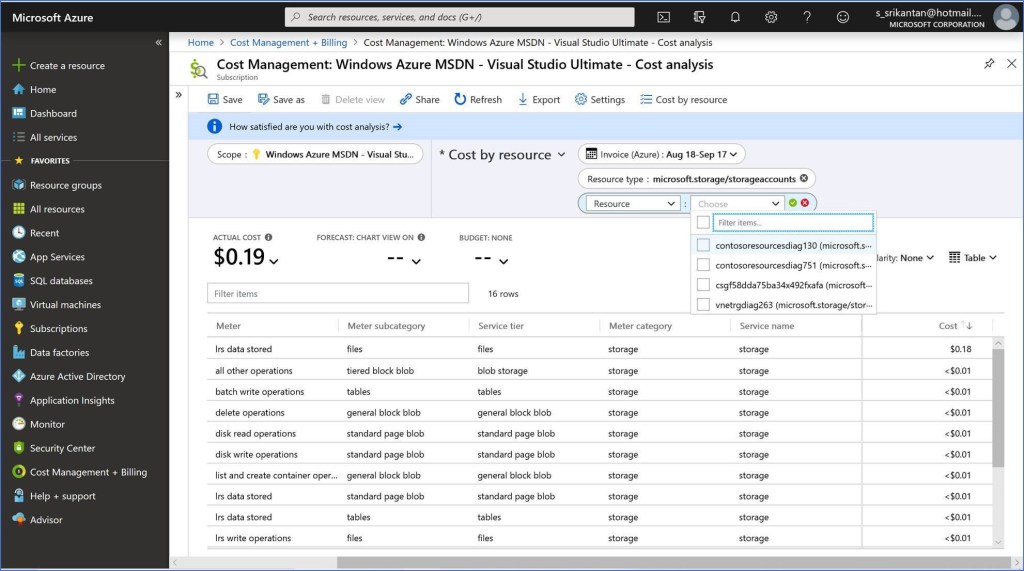
In order to get the spend Meter breakup of all Storage Accounts in the Subscription, you would create a report on the lines shown below. You will notice that the output provides an aggregated number across all Storage Accounts, but does not provide the breakup of the Spend Meter at the Resource Level. The only option that remains is to add a filter on the Report and let the user select each Storage Account and run this report manually for each Storage Account(see below). This could be a very laborious process if there are several Storage Accounts in the Subscription.
We could use the REST APIs exposed for Cost Management in Azure from a Client side Application. I will be using the Postman Tool as the Client side Application in this post.
Register the Postman Client Application in the Azure AD Tenant: Create an App Registration in the Azure portal, and choose the type ‘Public Client(Mobile Device & Desktop)’, since we are registering the Postman Client. Set the Redirect URI as shown below.
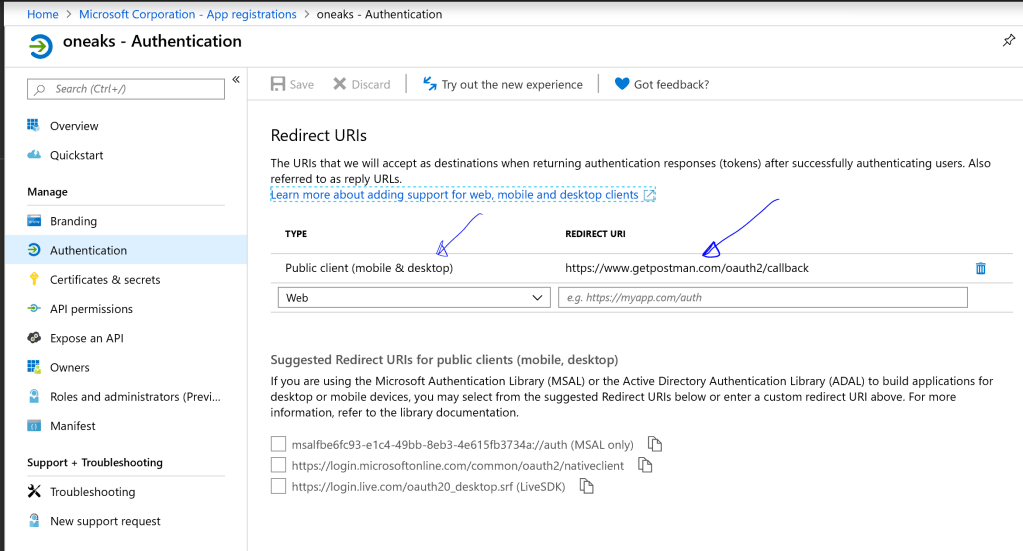
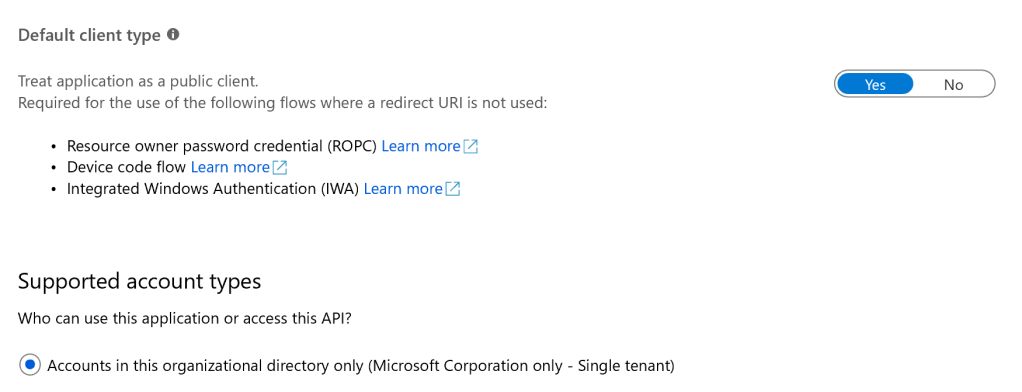
Note down the App ID, generate a Secret and note that down for use later in this post. Set the ‘Default Client type’ as ‘Public Client’ – see below
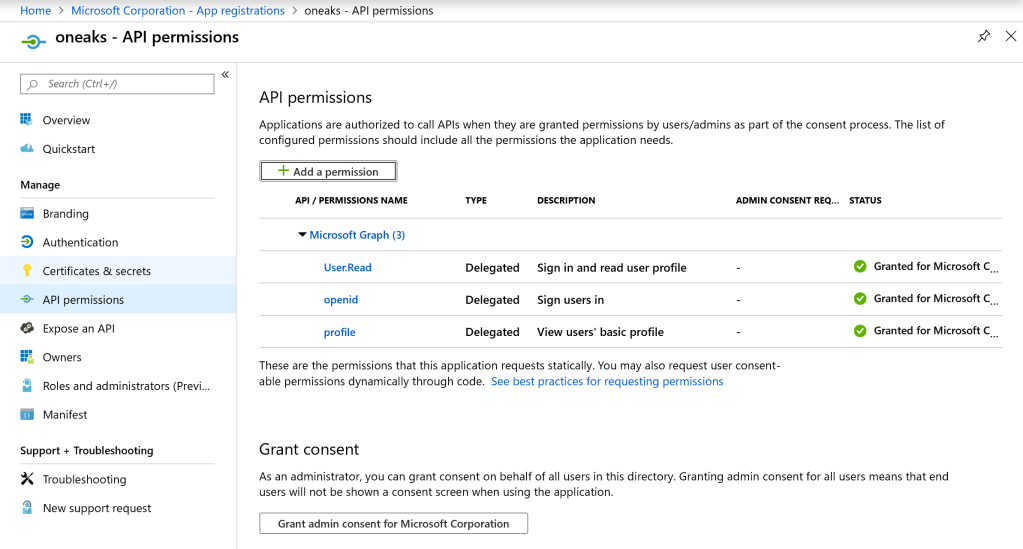
From the ‘API Permissions’ blade in the settings, assign the Postman Client permissions as shown below, to access Azure AD Graph API and sign in the user and read the Profile information.
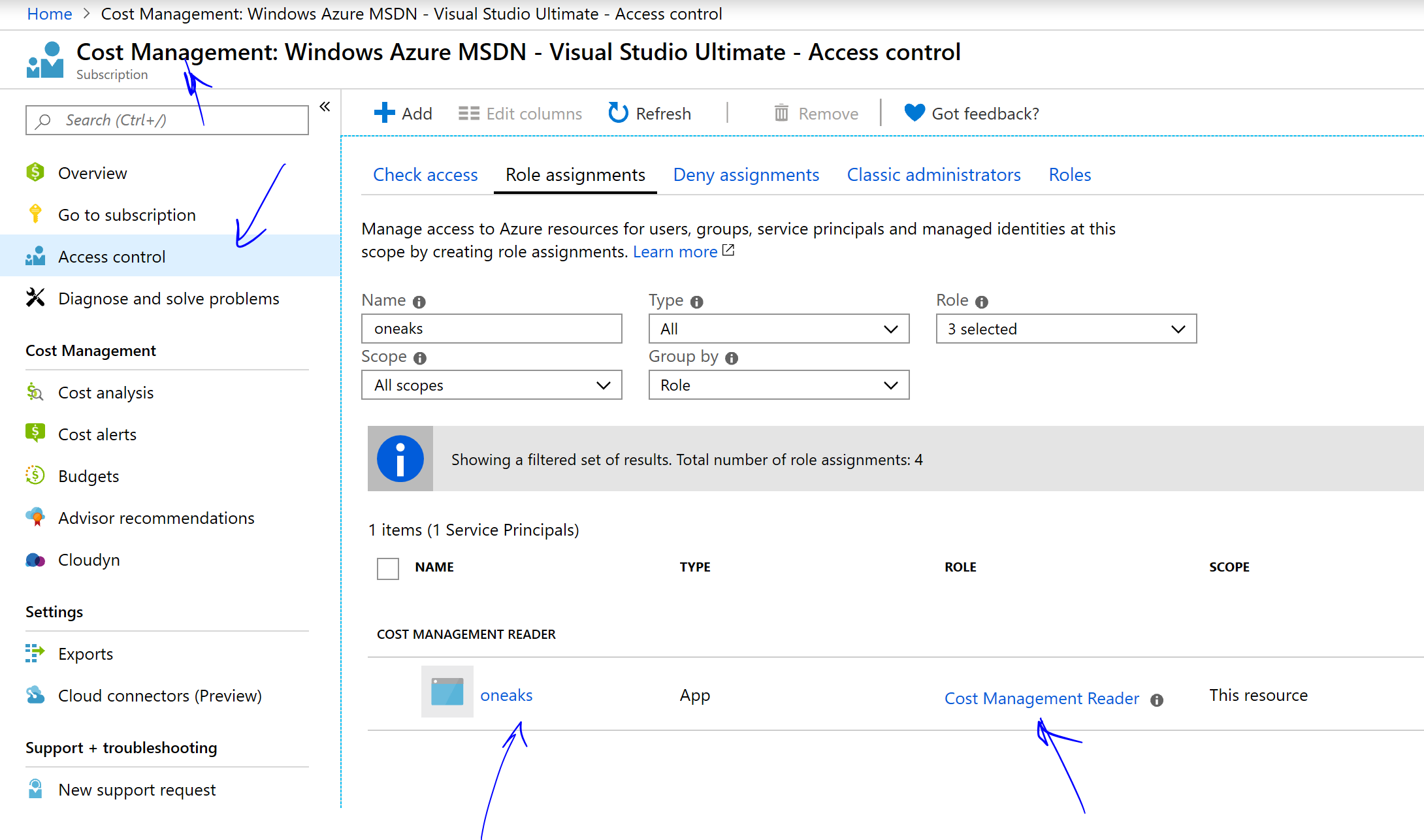
Provide the Postman Client access to Cost Management in Azure: Navigate to Cost Management in the Azure Portal, and in the IAM configuration, add a Role assignment ‘Cost Management Reader’ to the App registered in the previous steps. Once added, the configuration should appear as shown below:
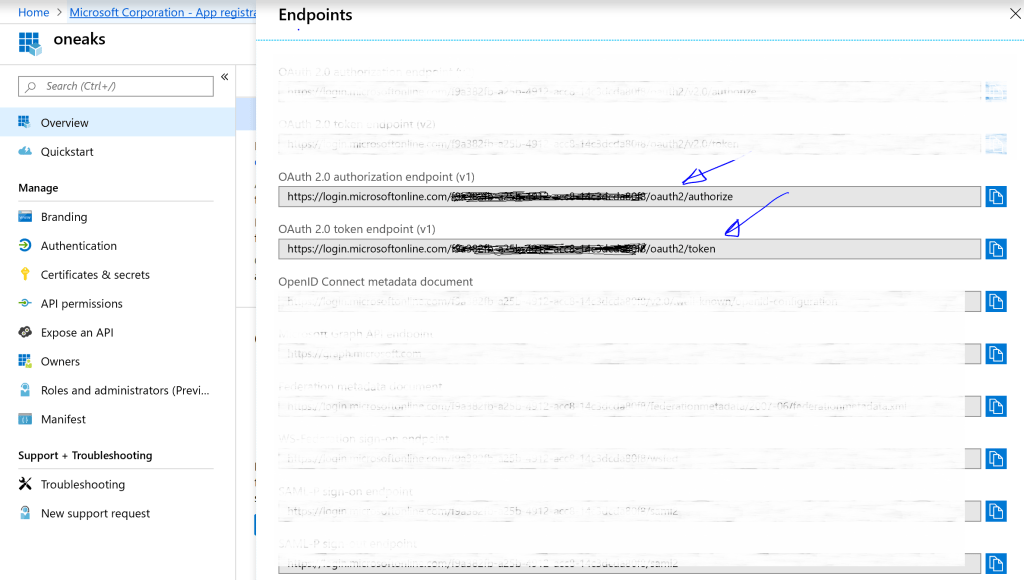
Call the REST API from Postman: Before you use Postman to make the API calls, get the a) Token endpoint URL & b) the Authorization Endpoint URL for the Azure AD Tenant where the App was registered in the steps earlier. See below:
From Postman, send a request to the Auth token endpoint URL, passing in the App ID (or Client Id), Secret, etc as shown below (Note: these need to be added in the Body of the Request as shown below). An Access token would be returned in the response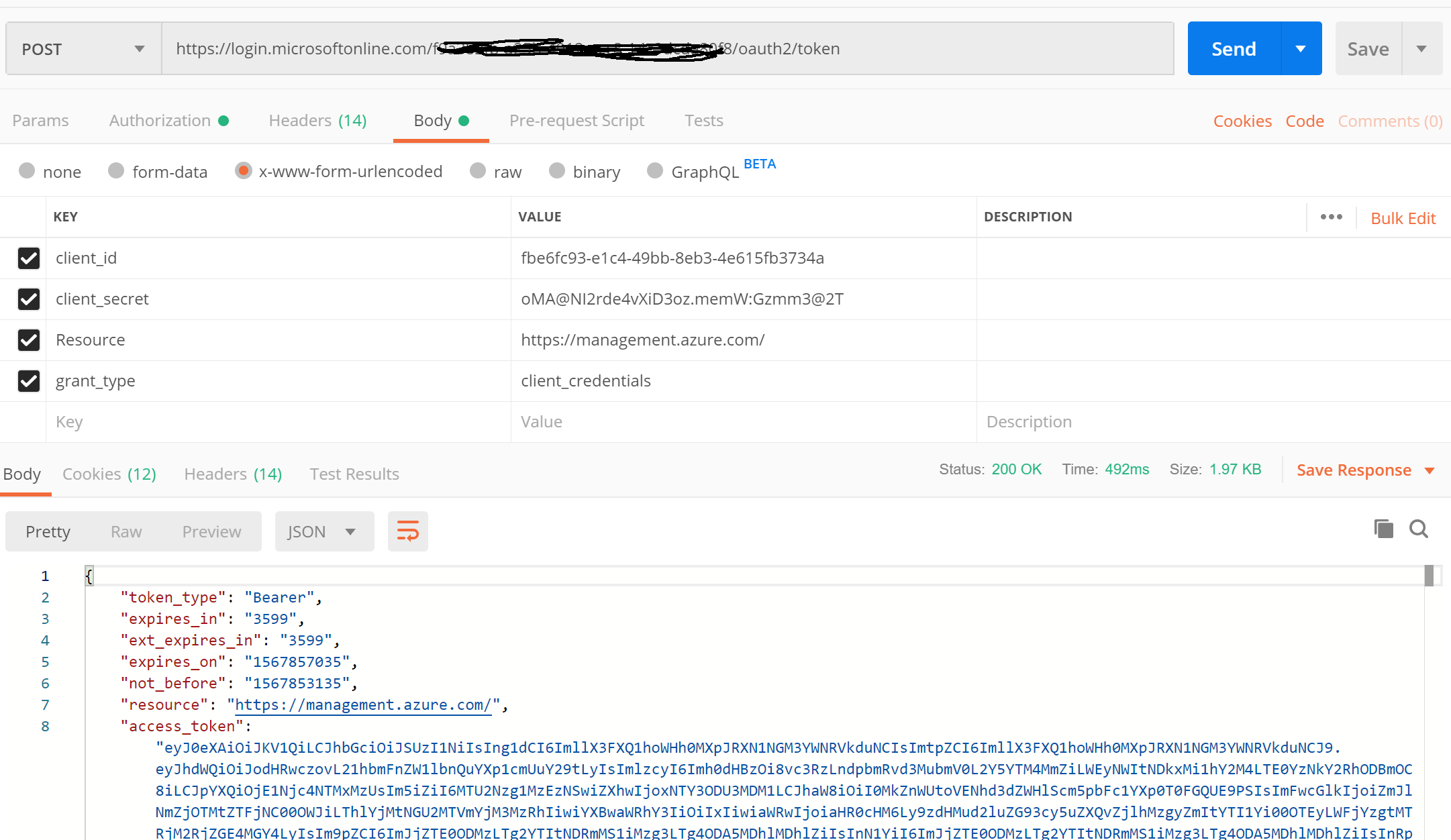
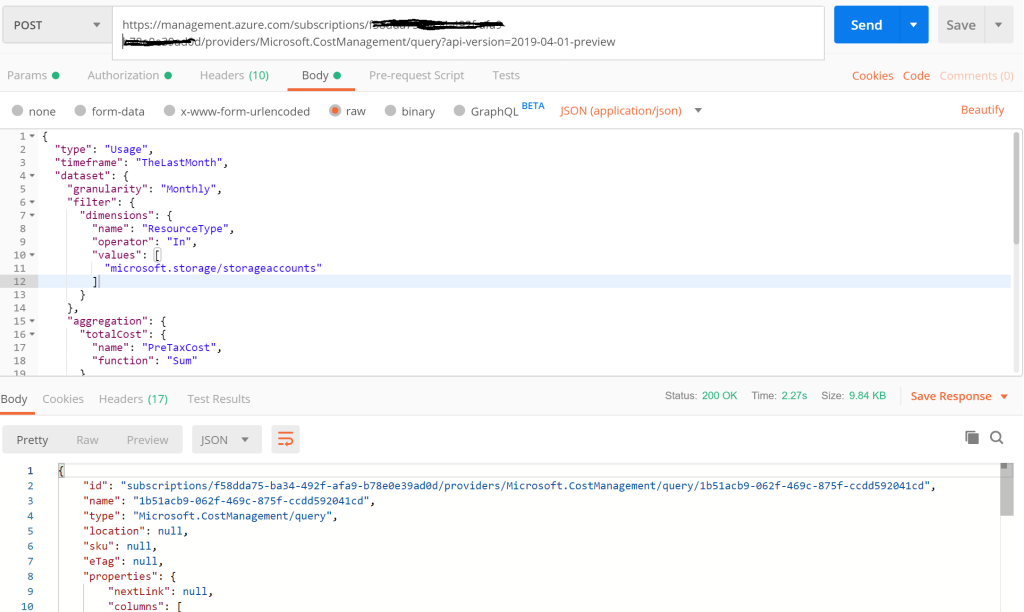
Call the Cost Management REST API and use the Auth Token obtained from the previous step. Choose the Authorization mode in Postman as ‘Bearer Token‘ 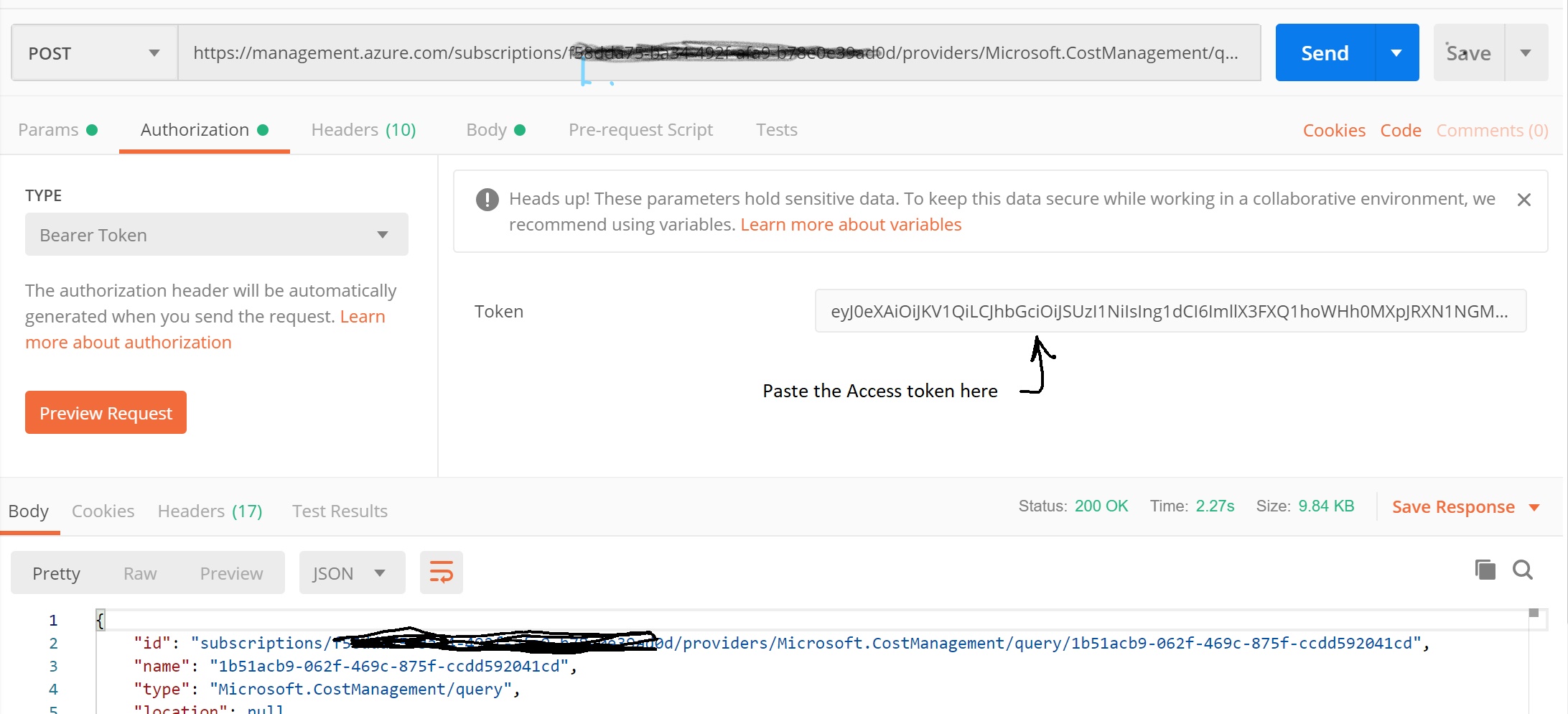
Paste the Request JSON as shown below into the Body of request
{
  "type": "Usage",
  "timeframe": "TheLastMonth",
  "dataset": {
    "granularity": "Monthly",
    "filter": {
      "dimensions": {
        "name": "ResourceType",
        "operator": "In",
        "values": [
          "microsoft.storage/storageaccounts"
        ]
      }
    },
    "aggregation": {
      "totalCost": {
        "name": "PreTaxCost",
        "function": "Sum"
      }
    },
    "grouping": [
      {
        "type": "Dimension",
        "name": "ResourceId"
      },
      {
        "type": "Dimension",
        "name": "Meter"
      }

    ],
    "sorting": [
      {
        "name": "Resource",
        "querySortingDirection": "Descending"
      }
    ]
  }
}
Post the request to the REST API endpoint as shown in the screenshot below. You should see the response with the Meter data broken down at each Resource Level.
Notice that the Meter spend is broken down at the individual Storage Account Name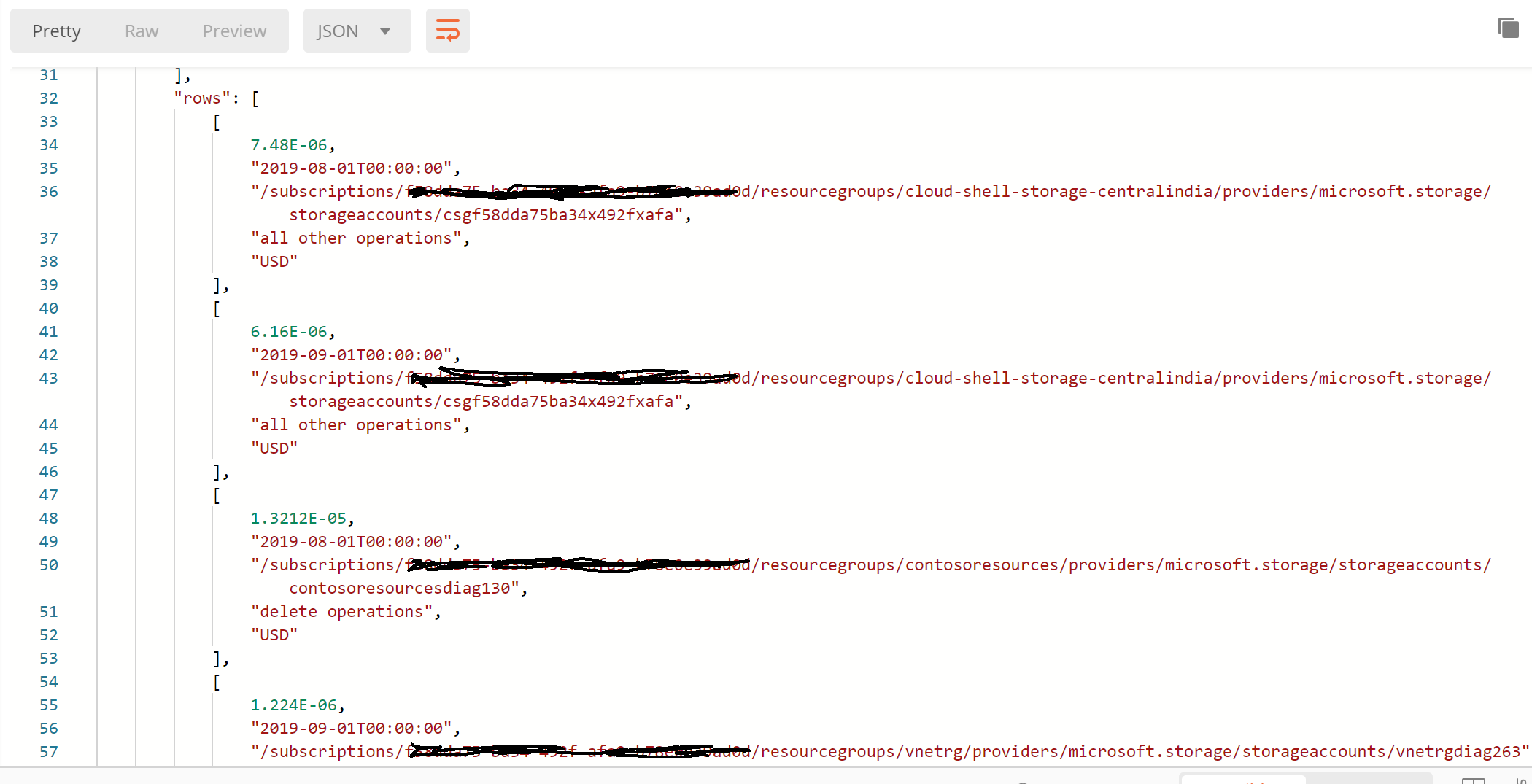
 Srikantan's Blog